Linkedroid automates your LinkedIn outreach with smart, personalized engagement. That is the one-line version. The longer version is that it visits profiles, sends connection requests and messages, runs multi-step drip sequences, tags your network, and keeps all of it inside limits that will not get your account flagged.
This guide covers the part everyone skips: getting installed, understanding the two logins, and knowing what every part of the dashboard actually does before you run anything. It is written against version 3.7.0.
Installing the extension
Linkedroid is a Chrome extension. Install it from the Chrome Web Store, and Chrome will ask you to confirm the permissions it needs. It asks for access to LinkedIn pages, storage, tabs, cookies, alarms and notifications. Those are what let it read your search results, remember your campaigns, and keep sequences running on a schedule in the background.
The download is small, around 1.5 MB, and it installs in a few seconds.
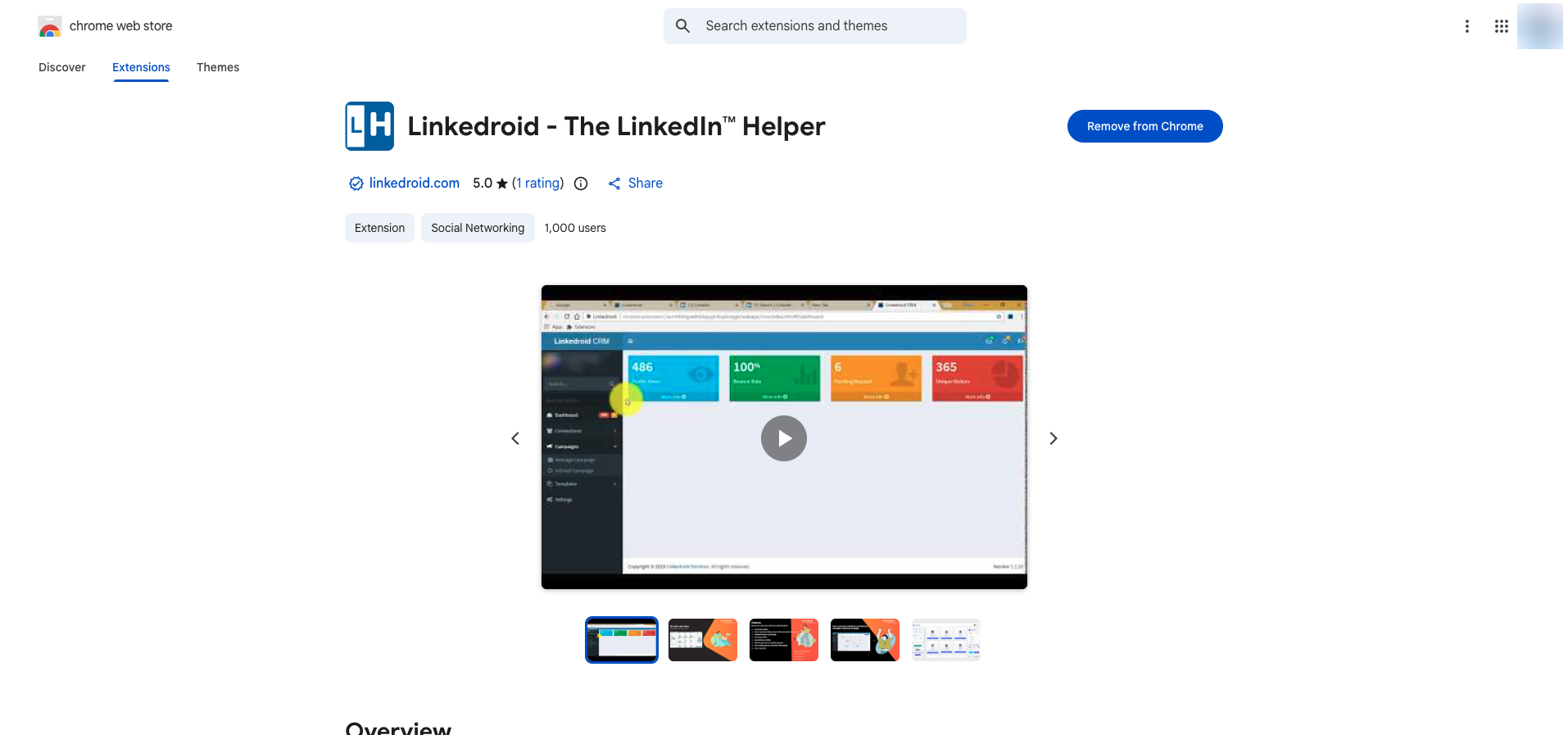
Once it is installed, click the Linkedroid icon in your Chrome toolbar. Linkedroid does not open as a small popup. It opens as a full browser tab, which is why there is room for a real dashboard instead of a cramped panel.
The two logins, and why people get confused
This trips up almost every new user, so it is worth being clear about up front.
Linkedroid has two separate identities in play at the same time.
The first is your Linkedroid account. You create it by signing in with Google. This is what carries your plan, your saved campaigns, your tags and your settings.
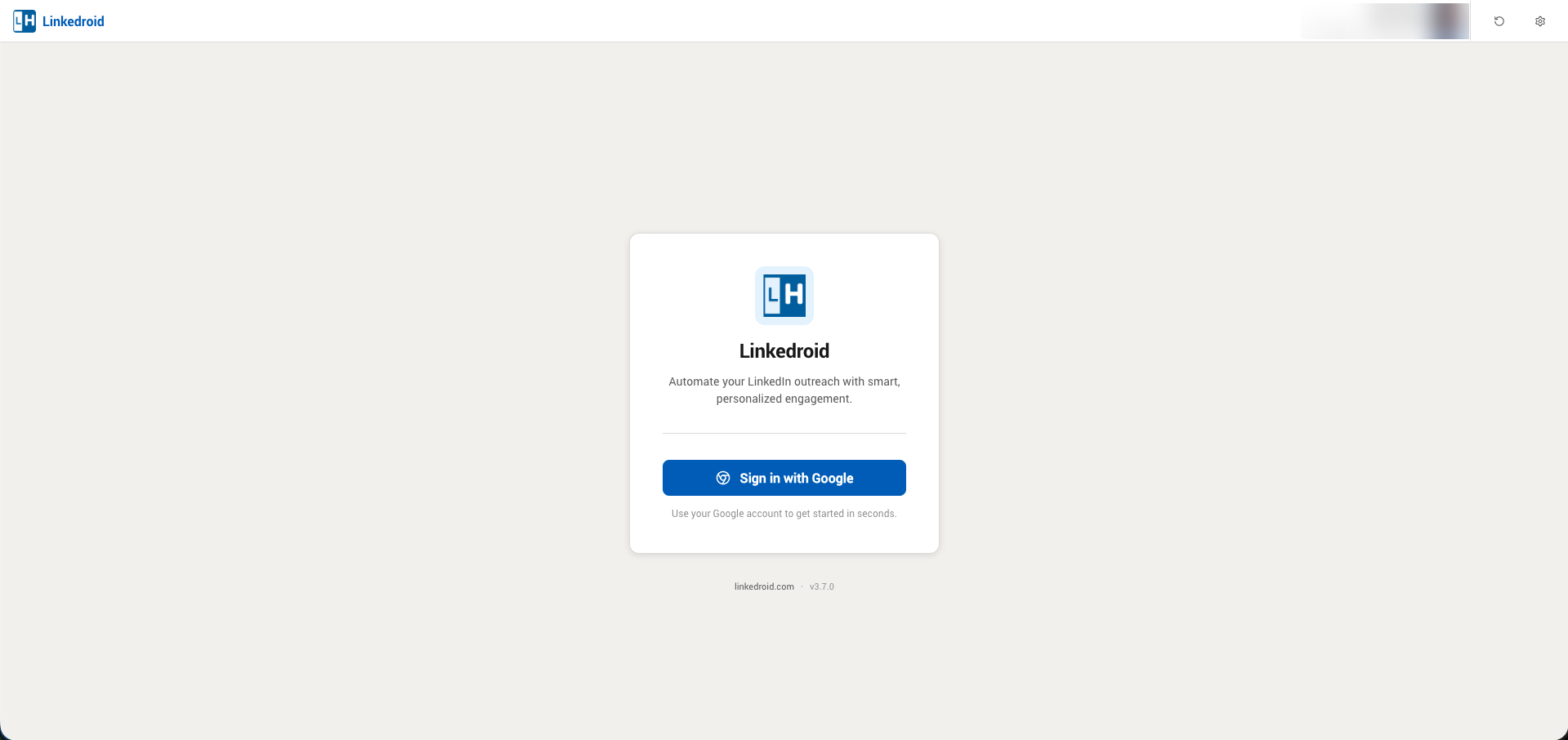
The second is your LinkedIn account. Linkedroid does not ask you for LinkedIn credentials and never should. It reads whichever LinkedIn account is already signed into your browser, and shows that person's name and headline in the top right corner of the dashboard.
So if the top right shows a different name than you expected, you are signed into a different LinkedIn account in that Chrome profile. Switch LinkedIn accounts in the browser and Linkedroid follows. Notice in the screenshot above that the sign-in card is showing while a LinkedIn identity already appears in the header. That is correct behaviour, not a glitch.
The practical rule: your Google login decides what Linkedroid can do. Your browser's LinkedIn session decides who it does it as.
A tour of the dashboard
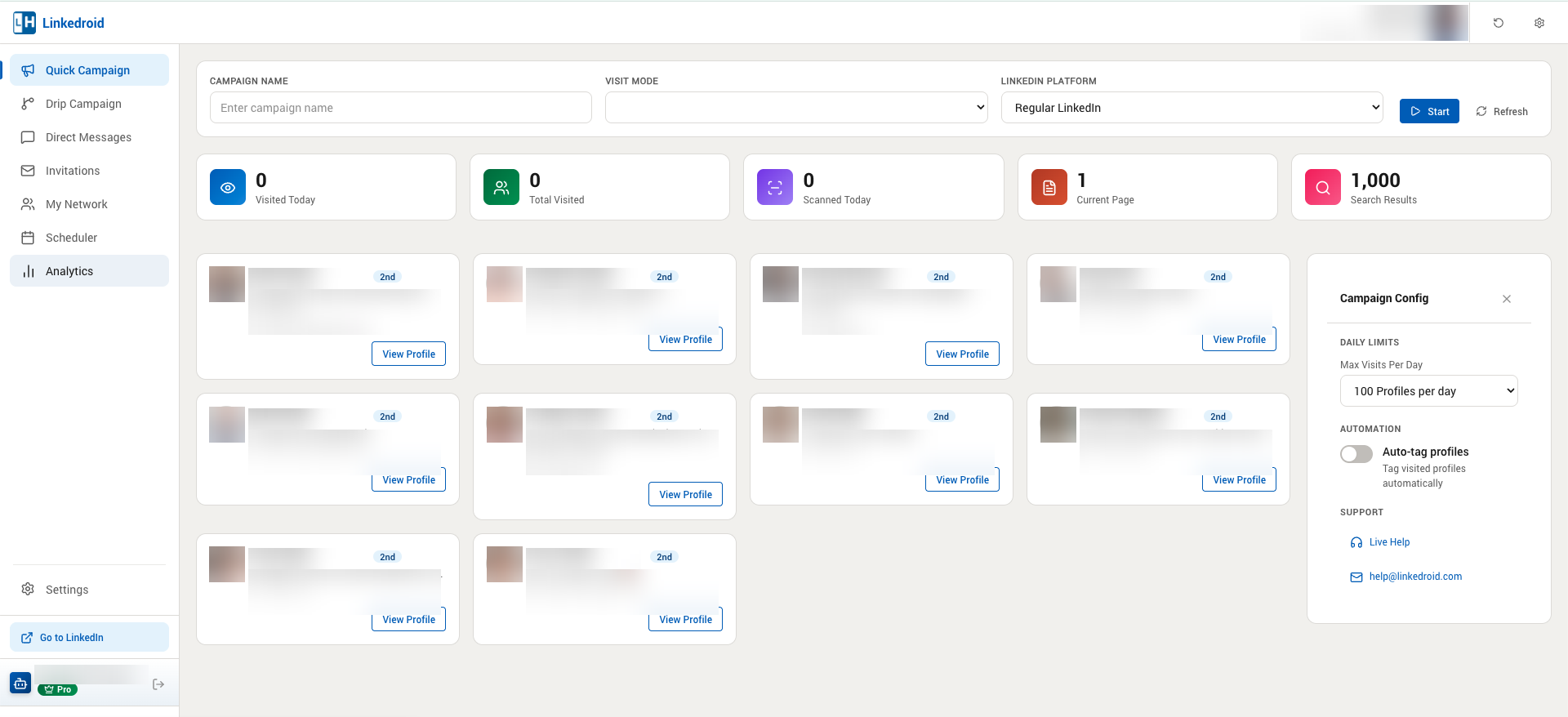
Once you are signed in you land on Quick Campaign. Here is the whole thing.
The sidebar
Seven sections, plus two pinned at the bottom.
- Quick Campaign is the simple one. Point it at a LinkedIn search and it works through the results, visiting profiles and optionally connecting or messaging.
- Drip Campaign is the powerful one. A visual flow builder where you chain steps together: connect, wait three days, check if they accepted, then message. Multi-step sequences live here.
- Direct Messages is your messaging view.
- Invitations shows invites you have sent and received, and lets you bulk withdraw stale ones or bulk accept incoming ones.
- My Network is your synced connections, with tags, filters and CSV export.
- Scheduler handles when things are allowed to run.
- Analytics reports on what your campaigns actually did.
- Settings and Go to LinkedIn sit pinned at the bottom.
The header and footer
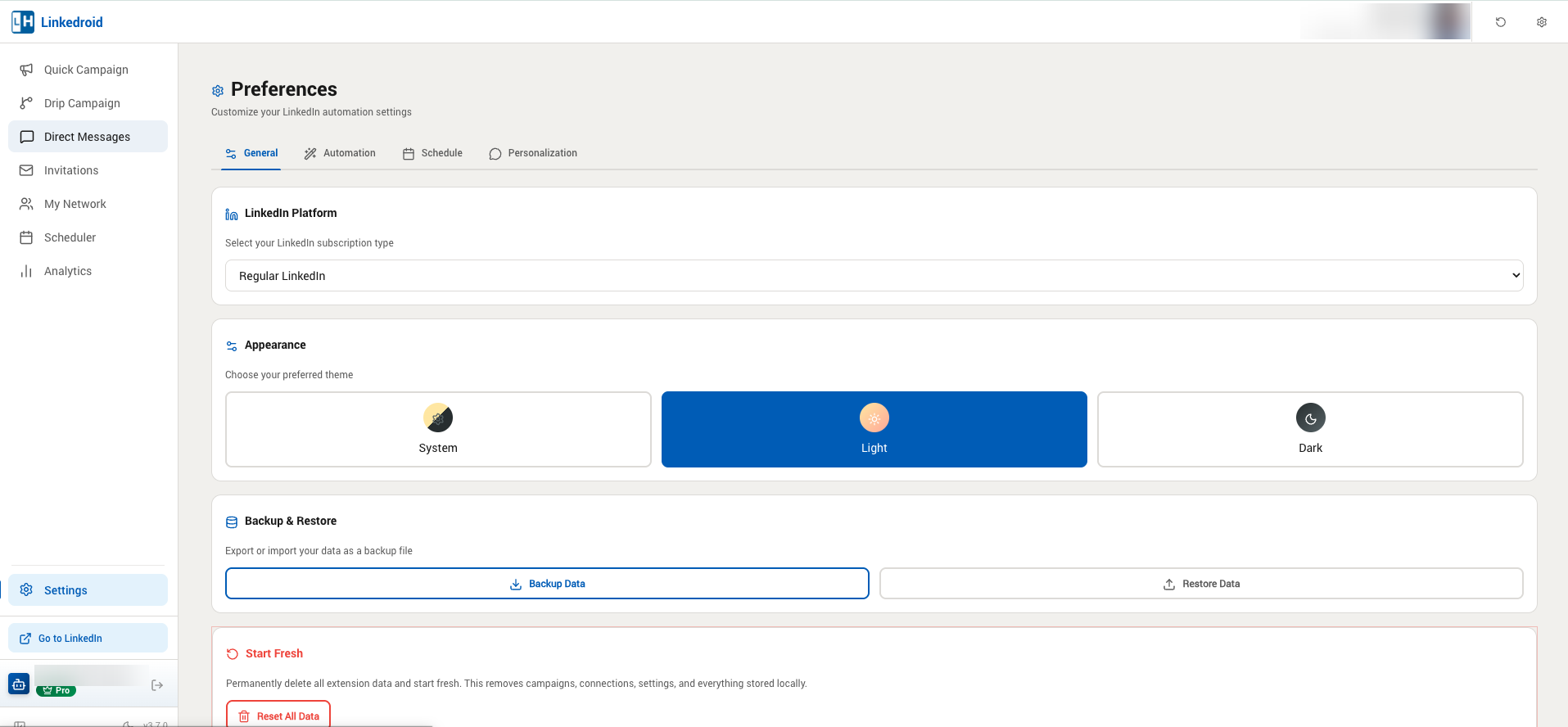
Top right shows the connected LinkedIn identity, a refresh button, and a settings gear. Bottom left shows your Linkedroid account, your plan badge, a sign out arrow, a light and dark theme toggle, and the version number.
Check that version number when something looks different from a guide. Linkedroid ships often.
The five counters
The row of numbers across the top is live campaign state, not lifetime stats.
- Visited Today and Total Visited are what they sound like. Visited Today is the one to watch against your daily limit.
- Scanned Today counts profiles Linkedroid has read from search results, which is different from profiles it has actually visited.
- Current Page is which page of the search results it is working through.
- Search Results is the total size of the search you pointed it at.
Campaign Config
The panel on the right holds the settings that matter most before you press Start.
Daily Limits sets Max Visits Per Day. The available ceilings depend on your plan and which LinkedIn platform you are on. Regular LinkedIn is more conservative than Sales Navigator.
Auto-tag profiles tags every profile it visits, automatically. Leave it off until you have decided on a tag structure, because it is much easier to tag deliberately than to clean up thousands of auto-applied tags later.
You can close this panel with the X to get more room for profile cards, and reopen it from the settings gear in the header.
Set your daily limit before you run anything
This is the one thing to do before your first campaign.
LinkedIn watches for automation, and the signal it reacts to is volume that does not look human. A brand new account running 500 profile visits on day one is the fastest way to get restricted. The limit selector exists so you do not have to think about pacing every day, but it only helps if you set it low and raise it slowly.
Start at 100 per day. Run it for a week. If nothing looks wrong, step it up. There is no prize for going fast, and a restricted account costs you far more time than a slow ramp.
What to read next
You are installed and you know your way around. Three guides pick up from here.
- Running your first search campaign covers visit modes, targeting and reading the live stats.
- AI personalization covers getting Linkedroid to write a different opener for every profile.
- Drip campaigns covers the flow builder and multi-step sequences.
Questions along the way go to help@linkedroid.com, or use Live Help from the Campaign Config panel.
Comments
Post a Comment