A search campaign is the simplest thing Linkedroid does, and it is where almost everyone should start. You run a search on LinkedIn, you tell Linkedroid what to do with the results, and it works through them at a pace you set.
This guide covers the whole loop: building the search, picking a visit mode, setting limits, and reading the numbers while it runs. Written against version 3.7.0.
Step 1: build the search on LinkedIn first
Linkedroid does not have its own search. It reads whatever LinkedIn search results are open in your browser, which means the quality of your campaign is decided entirely by the quality of your search.
Go to LinkedIn, search for people, and filter down. The filters that matter most are connection degree, location, and current company. A search returning 1,000 results that are all wrong is worse than one returning 80 that are all right.
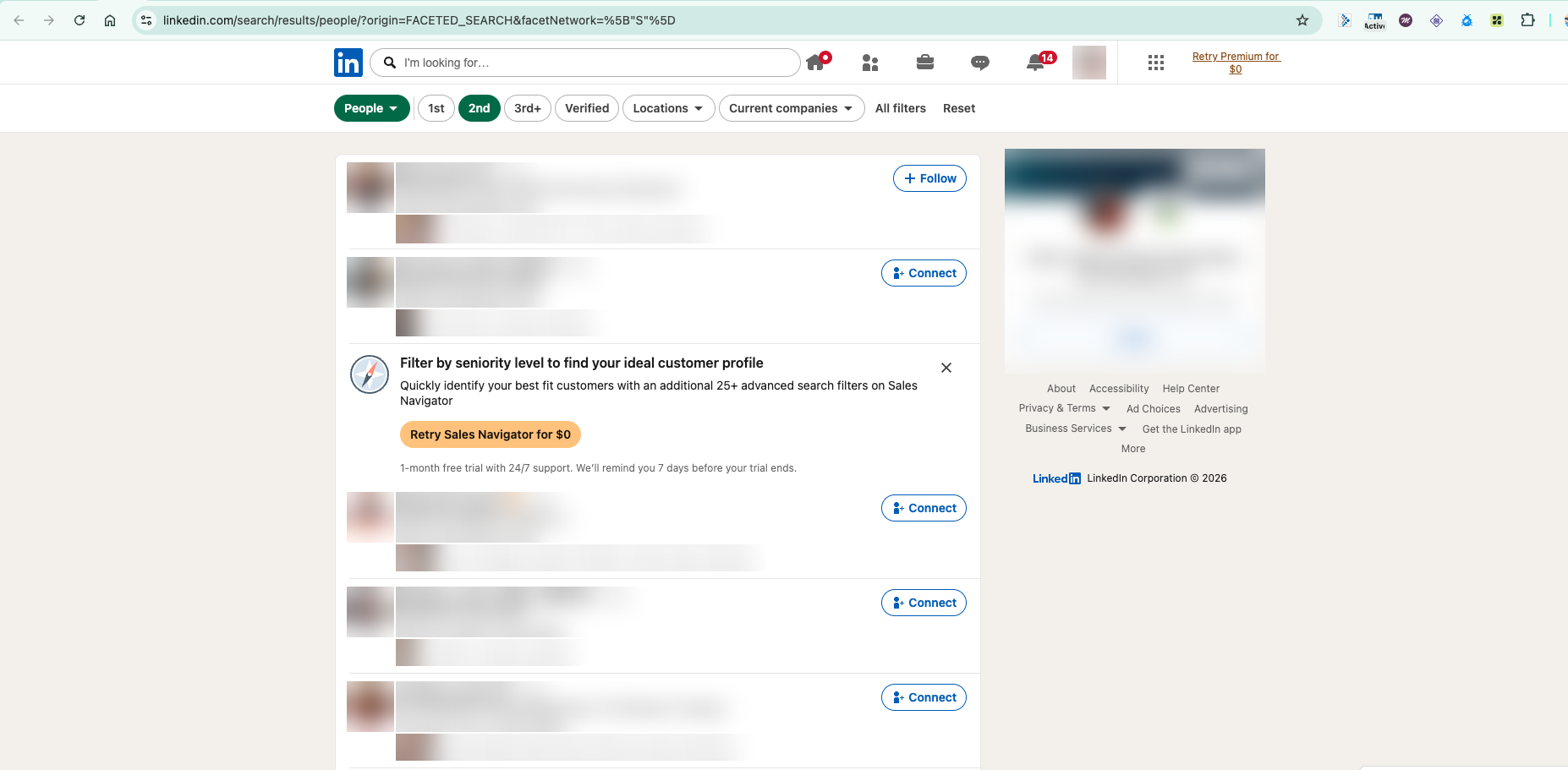
Filter to 2nd degree for connection campaigns. Those are people who share a connection with you, so a request from you is not coming out of nowhere. 3rd+ works but converts worse. 1st degree is for messaging people you are already connected to.
Step 2: name the campaign and pick a visit mode
Switch to the Linkedroid tab and open Quick Campaign. Give the campaign a name you will recognise later, because this is what you will be reading in Analytics in three weeks.
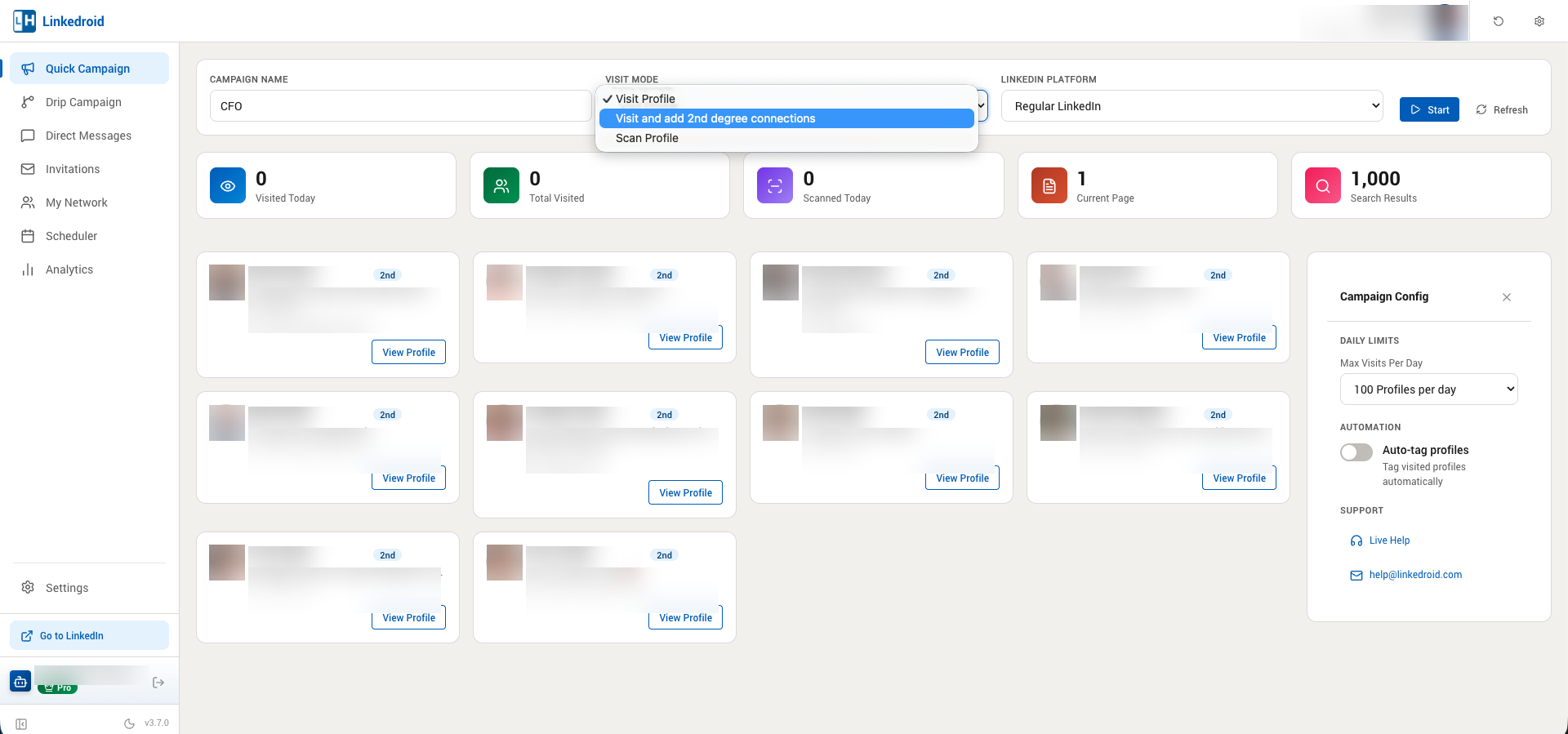
Then pick a Visit Mode. There are three.
Visit Profile
Linkedroid opens each profile in the search results and nothing more. No connection request, no message.
This sounds pointless and is not. LinkedIn tells people who viewed their profile. A profile view is a soft signal that costs you nothing and triggers no limits worth worrying about. A good number of people will look back at you, and some will reach out on their own. It is also the safest mode to use while you are working out whether your search is actually well targeted.
Start here. Run a few hundred visits before you send a single request.
Visit and add 2nd degree connections
Visits the profile, then sends a connection request to 2nd degree connections in the results.
This is the workhorse mode. Note the name is precise: it targets 2nd degree. If your search results contain people you are already connected to, this mode is not the right tool for reaching them.
Scan Profile
Reads profile data into Linkedroid without performing outreach.
Use this to build an audience. Scan a search, get those profiles into your Linkedroid data with tags, then target them later from a drip campaign. It separates the job of finding people from the job of contacting them, which is usually the right way round.
Step 3: pick your platform
The LinkedIn Platform dropdown has three entries: Regular LinkedIn, Sales Navigator and LinkedIn Recruiter. The last two are greyed out unless your plan includes them, so if they look unavailable that is why.
This is not just a label. It changes which pages Linkedroid reads and how many profiles per day you are allowed, because Sales Navigator and Recruiter accounts can sustain far more activity than a free LinkedIn account.
Step 4: set your daily limit
Open Campaign Config on the right. Max Visits Per Day is the single most important setting in the product.
The available ceilings are tied to your platform and plan:
- 100 and 250 profiles per day on Regular LinkedIn
- 300 and 450 profiles per day on Regular LinkedIn with a Business plan
- 500 profiles per day on LinkedIn Recruiter
- 800 profiles per day on Sales Navigator
Pick the lowest one. Really.
LinkedIn does not publish its automation thresholds and they are not fixed. What is consistent is that the accounts that get restricted are the ones whose activity jumps suddenly. An account that has never done more than 20 profile views a day and then does 450 is an obvious outlier. The same account climbing from 50 to 100 to 200 over a month is not.
The limit selector is not a target. It is a ceiling you are choosing not to hit.
The skip window
Linkedroid remembers who it has already visited and will skip them for a configurable window: 7 days, 15 days, 31 days, never skip, or a custom number.
Leave this on. Repeatedly viewing the same profile is a strange thing for a human to do, and it wastes your daily budget on people you have already touched.
Auto-tag
Auto-tag applies a tag to every profile Linkedroid visits. When you turn it on, a field appears for choosing which tags to apply.
It is genuinely useful, but only once you have decided what your tags mean. Turning it on before that leaves you with thousands of profiles carrying a tag you no longer use. Run a campaign or two first.
Step 5: press Start
With a name, a mode, a platform and a limit set, the campaign is ready.
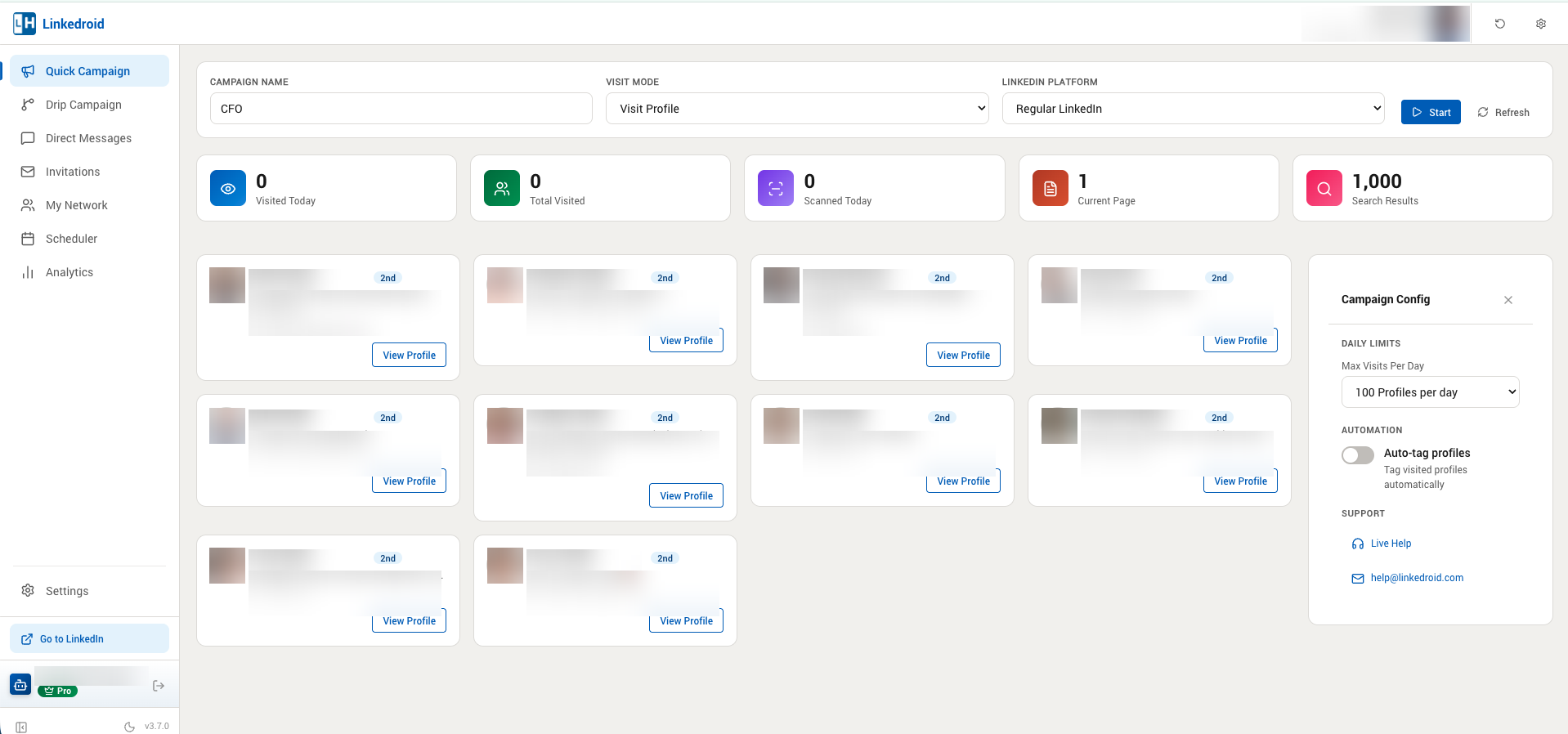
Leave the LinkedIn tab open. Linkedroid drives a real browser tab, so closing it stops the work.
Reading the numbers while it runs
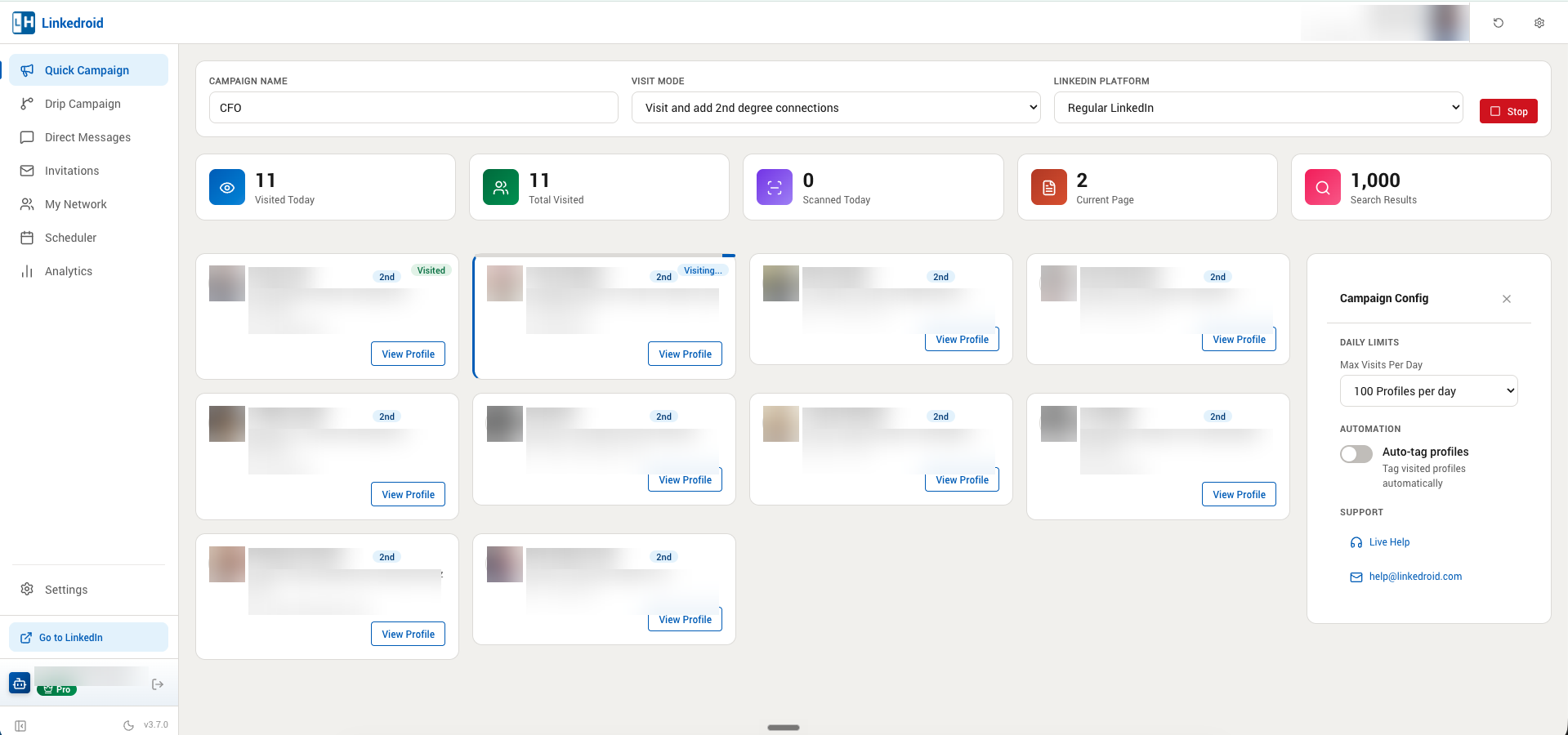
The five counters across the top are the campaign's live state.
Visited Today is the one that matters. Watch it against your daily limit.
Total Visited is the running total across the campaign, not just today.
Scanned Today counts profiles read out of search results. It runs ahead of Visited Today, because Linkedroid reads a page of results before working through it. A large gap between Scanned and Visited usually means profiles are being skipped, most often by the skip window.
Current Page is which page of results it is on. If this stops moving, the campaign has stalled.
Search Results is the size of the search you pointed it at.
How campaigns end
A campaign stops for one of four reasons, and Linkedroid tells you which: it ran out of search result pages, it hit the page limit, a page failed to load, or you stopped it.
You get a Chrome notification and a banner on the dashboard. The one worth investigating is a load failure, which usually means LinkedIn served something unexpected. Reload the search and start again.
A sensible first week
If you want a plan rather than a set of options:
- Days 1 to 3. Visit Profile, 100 per day, on a tightly filtered 2nd degree search. No requests. Watch who views you back.
- Days 4 to 7. If the profiles look right, switch to Visit and add 2nd degree connections. Stay at 100.
- Week 2. Check Analytics. If acceptance is healthy and nothing looks off, raise the limit one step.
The instinct is to run the biggest number available on day one. Resist it. A restricted account costs weeks.
What to read next
Once this is working, two things make it better. AI personalization writes a different opener for every profile instead of one template for everyone. Drip campaigns turn a single action into a sequence that follows up on its own.
Stuck on something? help@linkedroid.com.
Comments
Post a Comment